
Notes App with Dark Mode for Writing at Night
Use Memory Chat's dark theme to write in a dim room, change the font size, and let the app follow your phone's light or dark setting.
Writing in a dark room
Some ideas arrive right as you're falling asleep, and some reminders only occur to you at night. A bright white screen in a dark bedroom is uncomfortable to look at and can wake someone lying next to you.
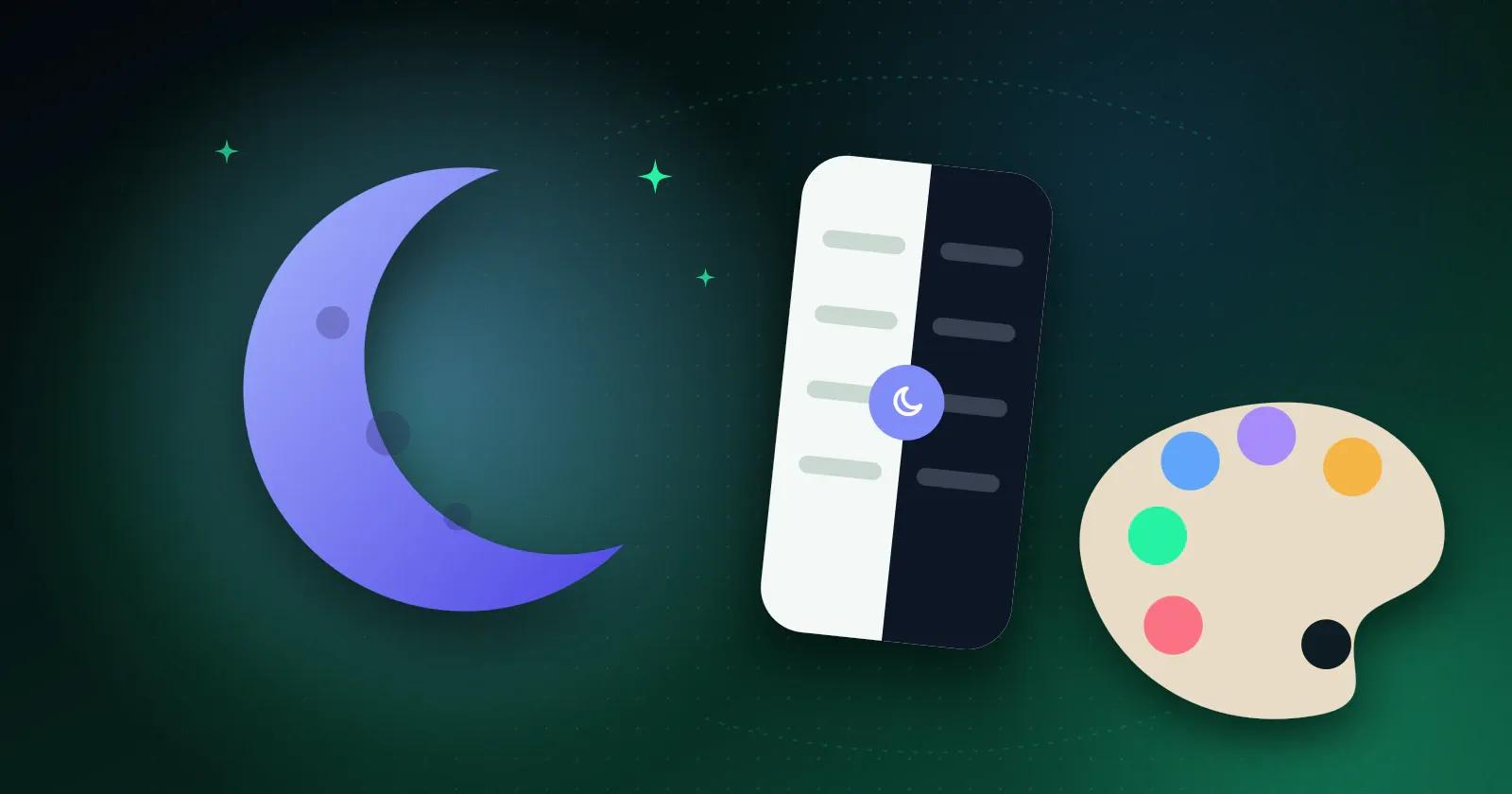
Memory Chat has a dark theme for this. It switches the background to a dark color, and you can set your phone's brightness as low as is comfortable.
What dark mode helps with
Many people find a dark background easier on their eyes when reading or journaling in the evening, especially with the brightness turned down and the text at a size that suits them. The screen also gives off less glare, which makes a quick note before bed less jarring. If it's late, dim the screen and keep the session short.
On phones with OLED screens, dark backgrounds can use less battery, although how much depends on the phone, the brightness, and how you use the app. And because the screen lights up less of the room, you can write something down next to a sleeping partner or baby without waking them.
Other display settings
A few more settings change how Memory Chat looks:
- Follow your phone's system theme, so the app switches between light and dark when your phone does, including on a schedule if you've set one
- Change the font size: larger for comfortable reading, or smaller to fit more on screen
- Chat bubbles are designed to stay clear and readable in either theme
How to turn it on
Open Settings, choose Appearance, and switch on Dark Mode.